A Portland-area managed IT services provider · Connected Operations
Missed remote-support chats, now posted to Teams
- Fires only when no technician is connected
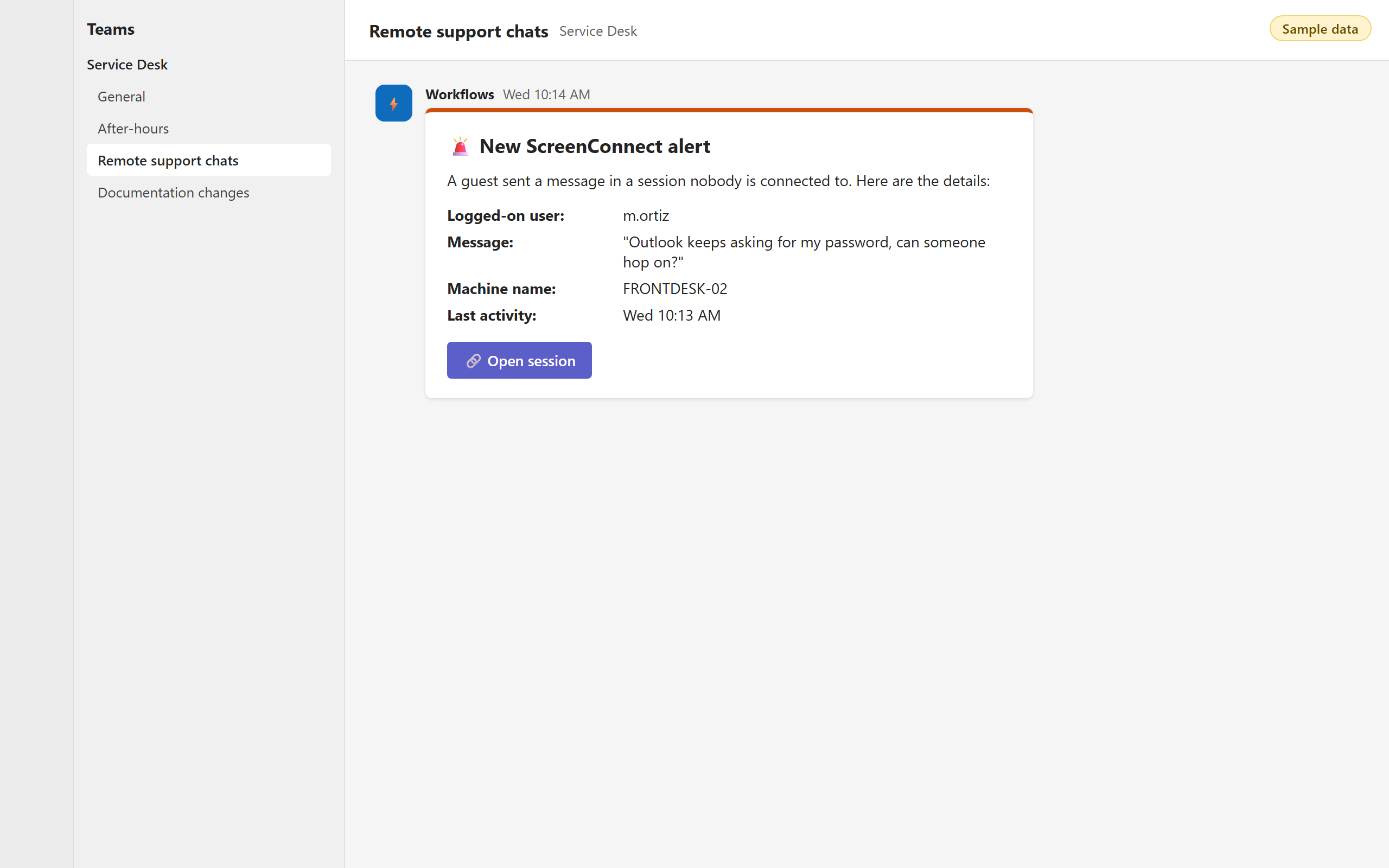
- Card shows the user, message, machine and last activity
- One click opens the right session
- Runs on ScreenConnect, Power Automate and Teams
The challenge
At a Portland-area managed IT provider, clients can open the ScreenConnect support app and type a message at any time. If no technician is connected to that machine's session, the message sits there unseen until someone happens to look, while the client thinks they've already asked for help.
What we did
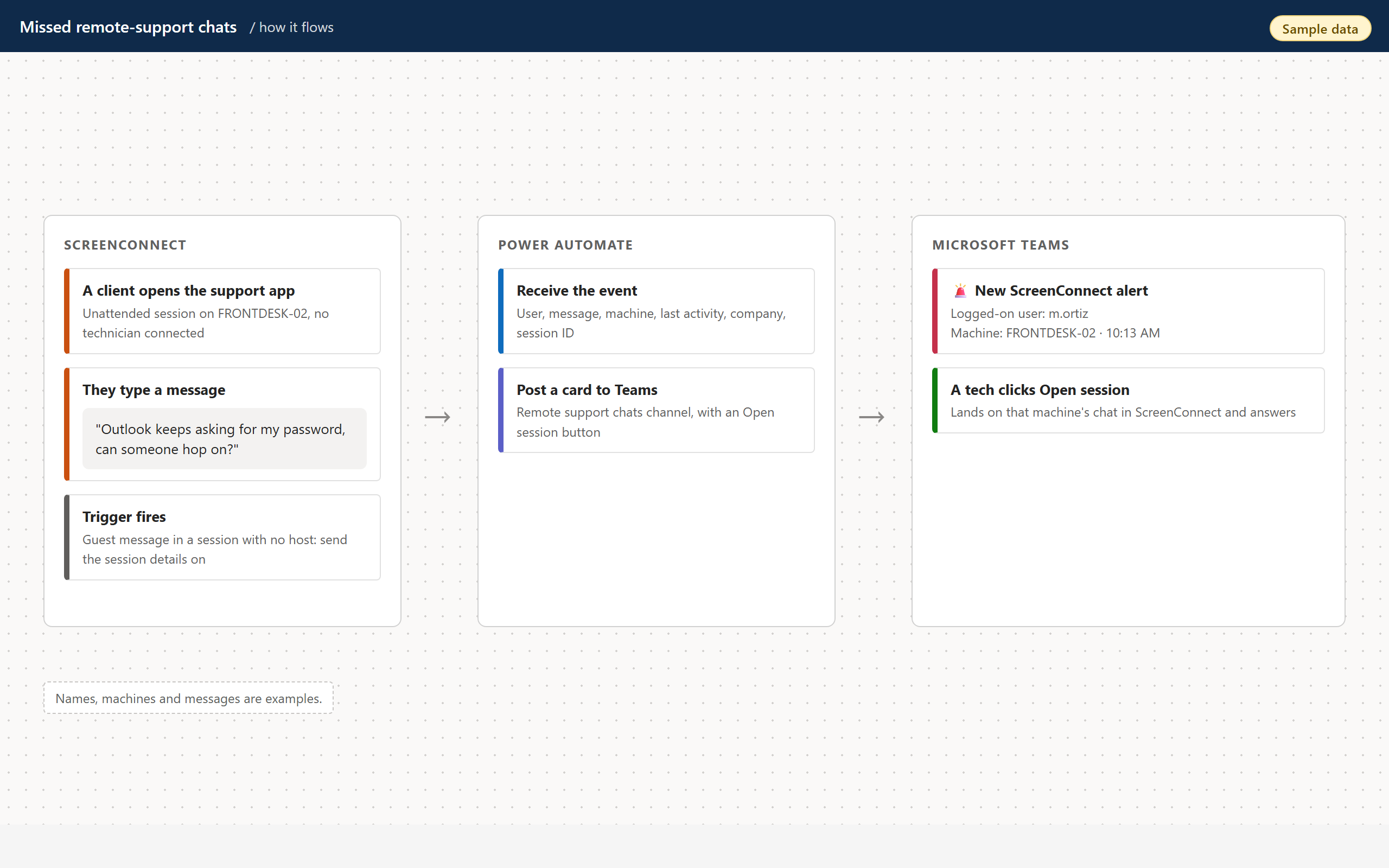
We set up a ScreenConnect trigger that fires when a guest sends a message in a session with no technician connected. It sends the session details to a Power Automate flow.
The flow posts a card to a Remote support chats channel in Microsoft Teams with the logged-on user, the message, the machine name and the last activity time.
An Open session button takes the technician straight to that machine's chat in ScreenConnect, filed under the right company, so they can answer in one click.
The result
Guest messages no longer depend on someone watching the ScreenConnect console. They land in the Teams channel the team already works in, with everything needed to answer. It runs on ScreenConnect, Power Automate and Microsoft Teams.